
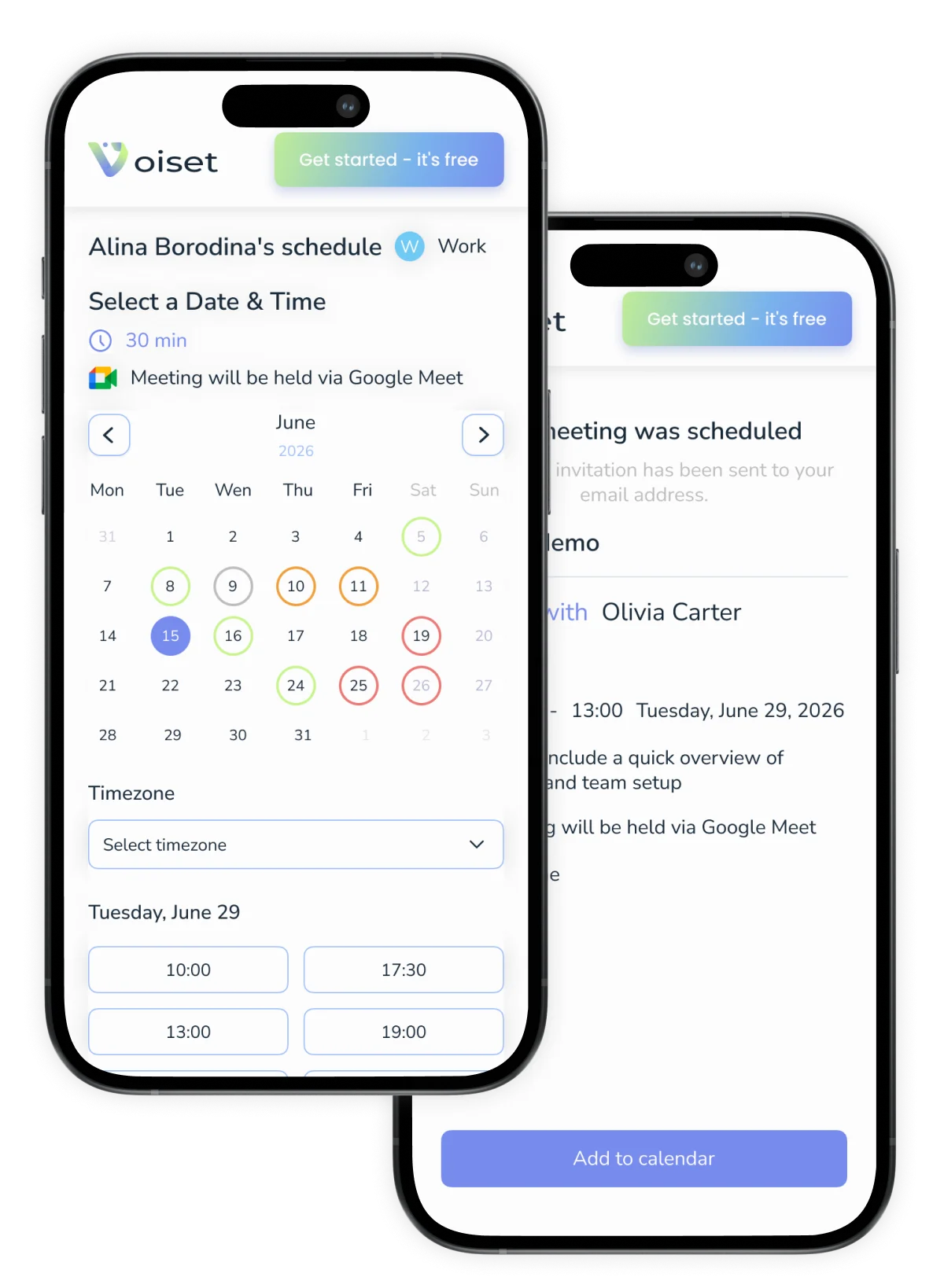
Set availability across workspaces, and Voiset keeps it consistent across projects: time slots stay open only when you’re actually free. Share an online booking link, and others pick an available time; the appointment is added to your calendar without conflicts.
Works with Google Calendar and Outlook, every booking syncs automatically.

Less “When are you free?”
back-and-forth. Share one availability link with clear time slots
Used by 6,000+ teams
for appointment scheduling with links
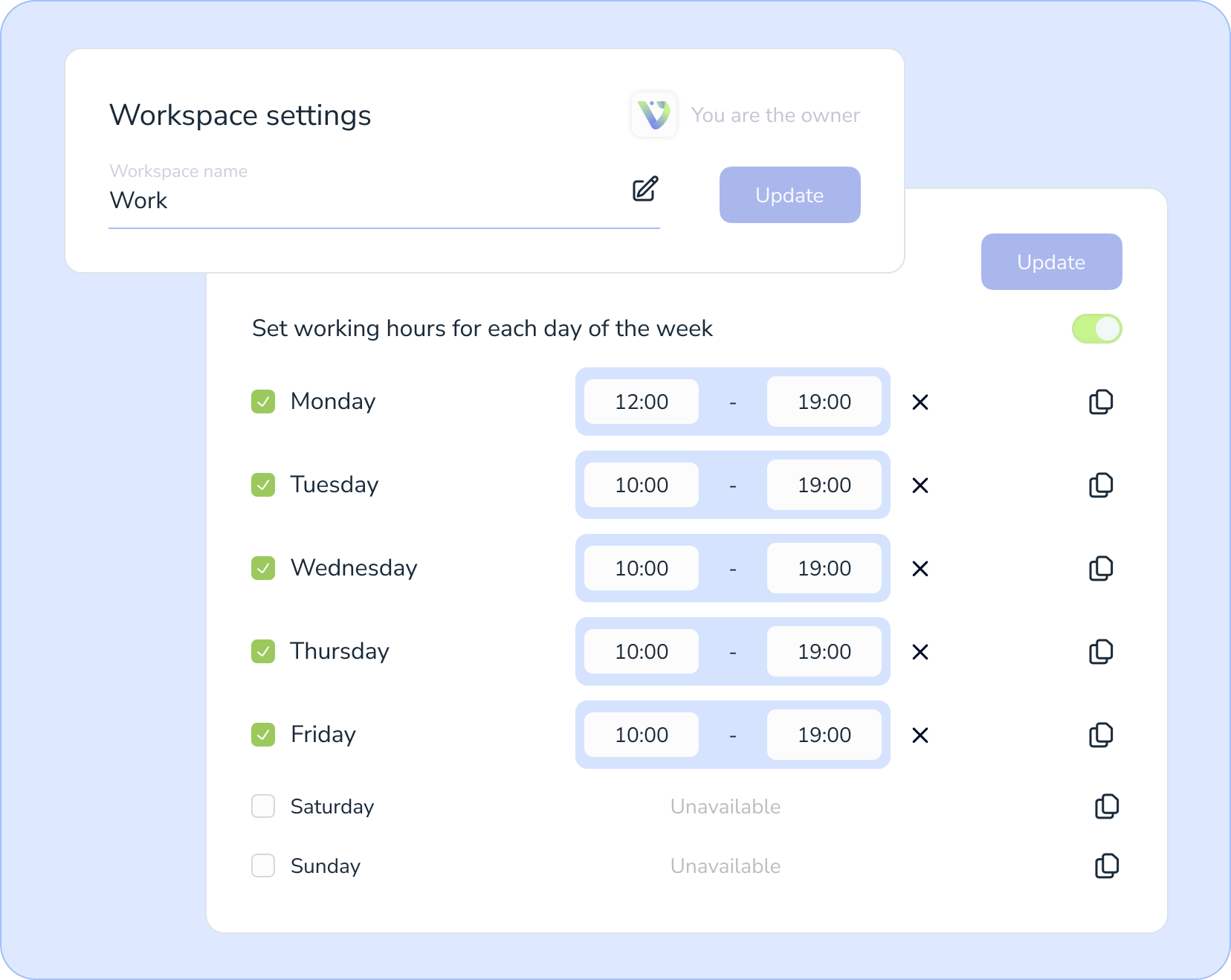
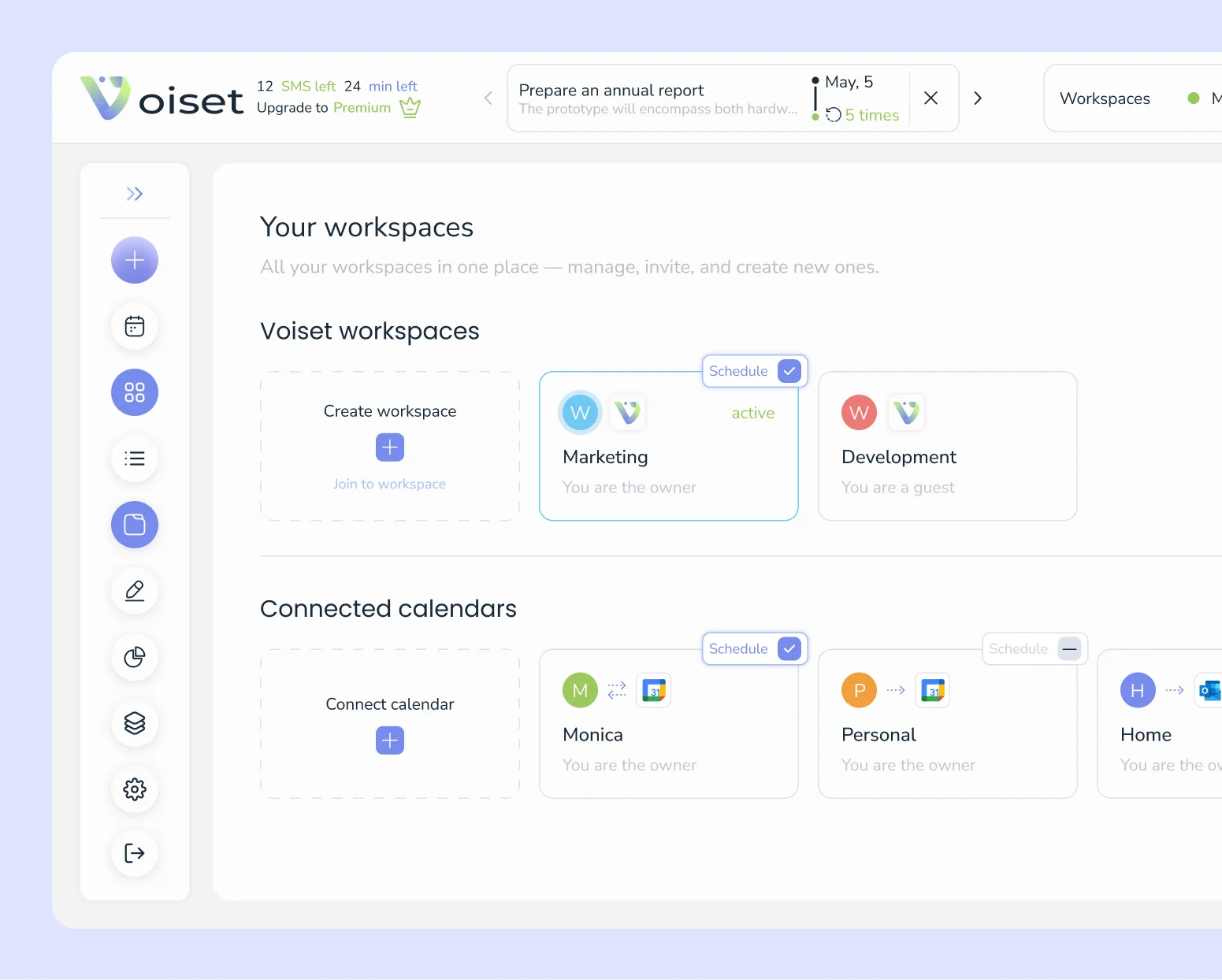
Create a separate workspace for a team, project, or role (sales, support, showings, etc.). It's convenient to store everything related to meetings inside it: meeting types, available slots, breaks, and notes. This way, the schedule doesn't get mixed up with other tasks and remains clear to both you and those who will be booking time via the link.
Create a separate workspace for a team, project, or role (sales, support, showings, etc.). It's convenient to store everything related to meetings inside it: meeting types, available slots, breaks, and notes. This way, the schedule doesn't get mixed up with other tasks and remains clear to both you and those who will be booking time via the link.
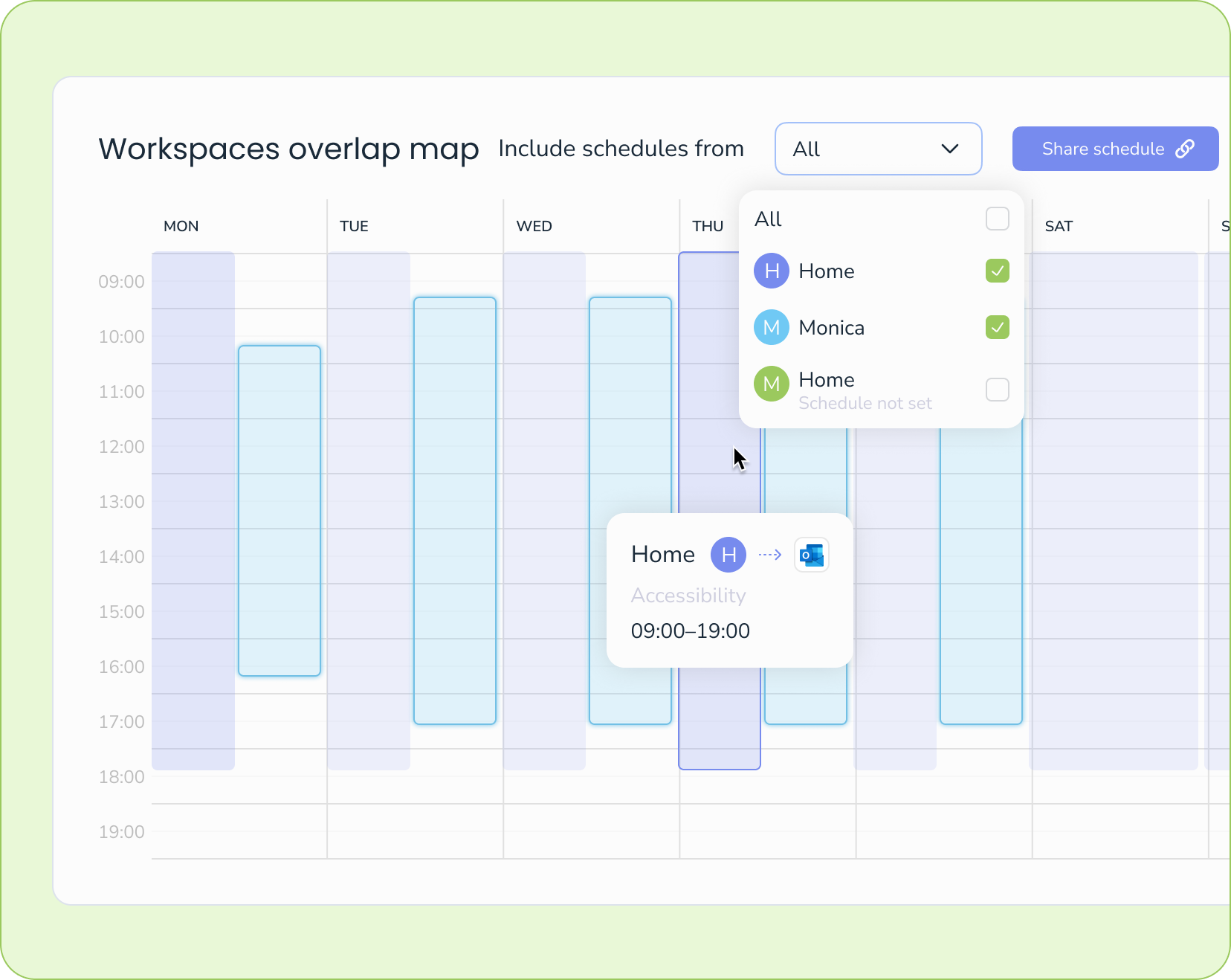
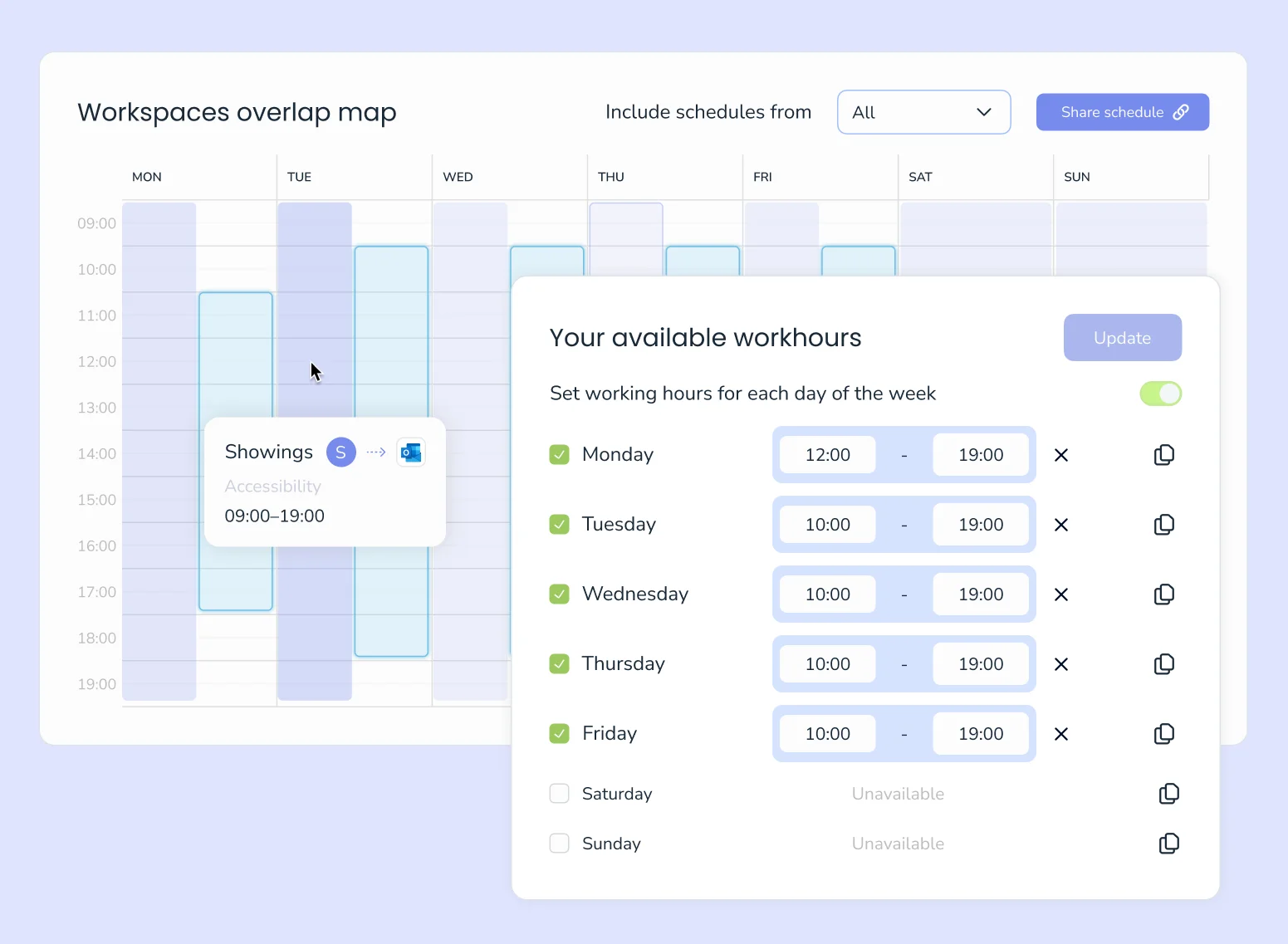
Before sharing the link, check the schedule in “overlap map” mode: Voiset shows available windows and how they overlap with other workspaces and projects. You can choose which schedules to consider (e.g., Work + Home or Client work only) and immediately see where a conflict might arise.
Before sharing the link, check the schedule in “overlap map” mode: Voiset shows available windows and how they overlap with other workspaces and projects. You can choose which schedules to consider (e.g., Work + Home or Client work only) and immediately see where a conflict might arise.
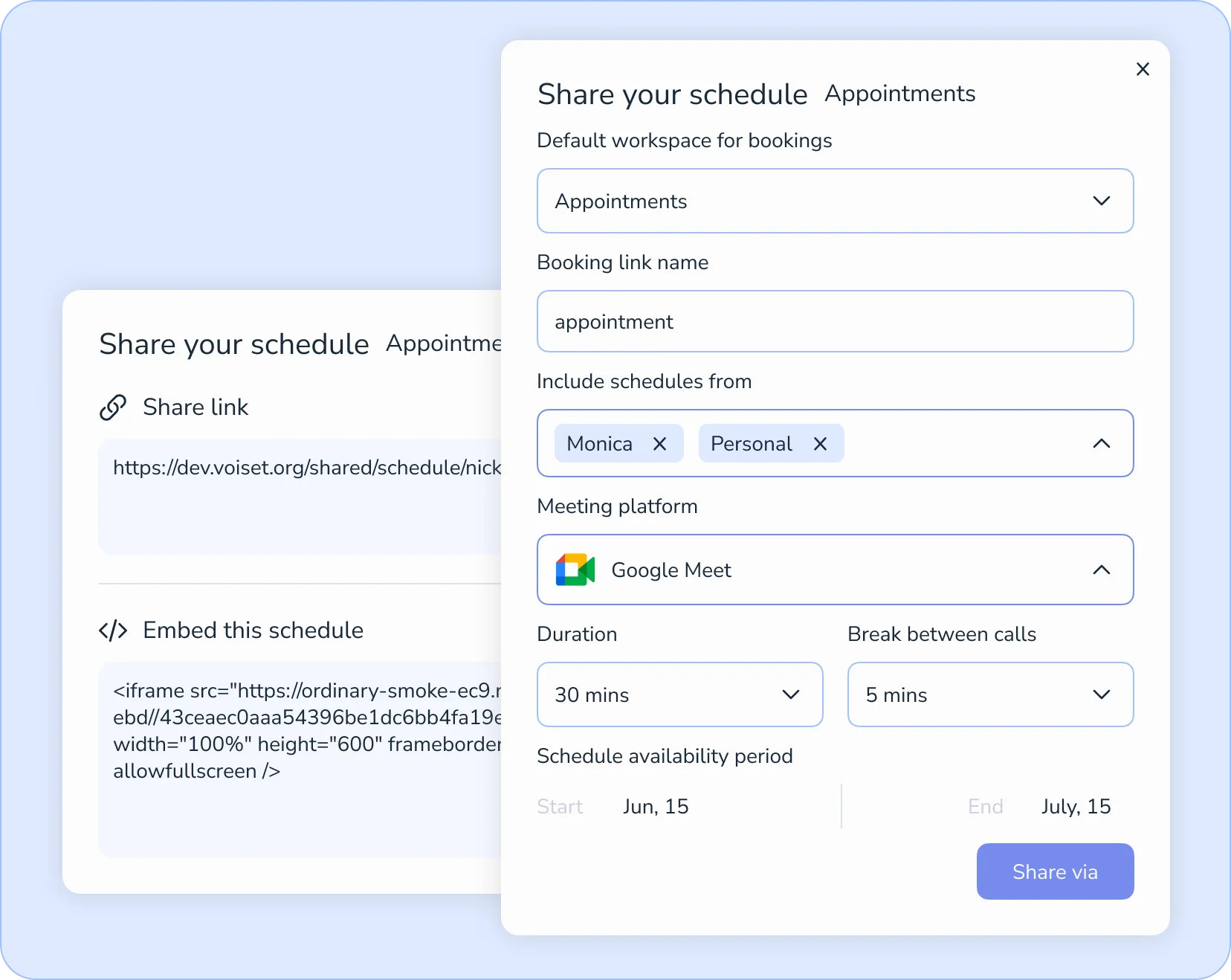
Set the sharing rules and get a link (or embed) that you can use in private communication or embed on a website.
Set the sharing rules and get a link (or embed) that you can use in private communication or embed on a website.
Share the booking link, and the other person sees only the available time slots that fit your real schedule. They choose a date and time, confirm the appointment, and Voiset adds it to your calendar automatically. No back-and-forth, no manual coordination: just self-scheduling from a single appointment link.
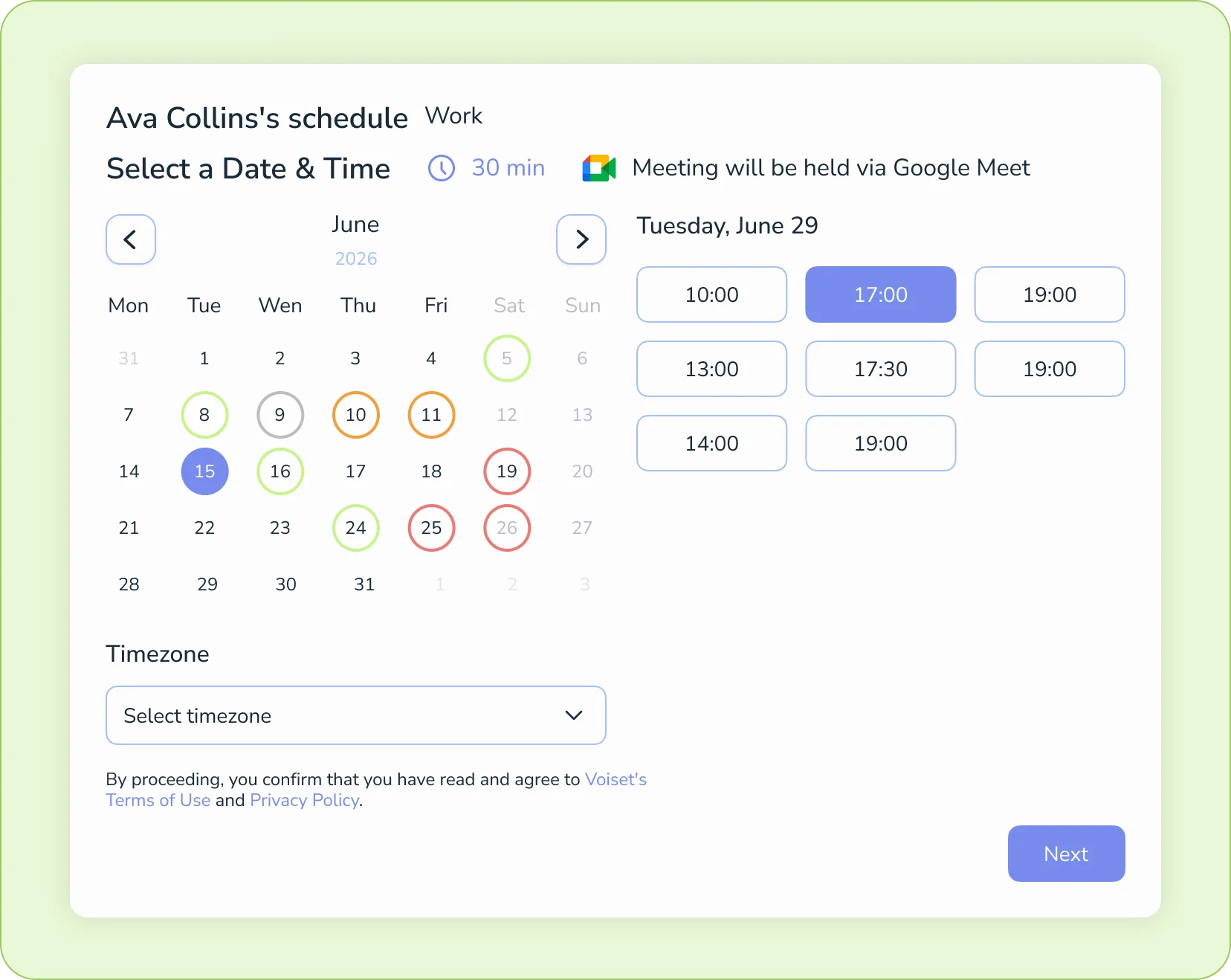
Share the booking link, and the other person sees only the available time slots that fit your real schedule. They choose a date and time, confirm the appointment, and Voiset adds it to your calendar automatically. No back-and-forth, no manual coordination: just self-scheduling from a single appointment link.
Most booking problems aren’t about the link, they’re about context: different workspaces, different meeting types, and a calendar that’s already full. These features keep availability realistic, meetings consistent, and bookings clear for both sides.

Workspaces / multi-schedule
Keep booking and scheduling in context: one workspace for personal time, another for a team, and another for a specific project. Each workspace can have its own availability and appointment setup, so meetings don’t mix with unrelated tasks.

Appointment types + buffers
Create different appointment types (15/30/60 minutes) for calls that need different pacing: a quick check-in, a consultation, a demo, or a showing. Add buffers so you have time to prepare, travel, or wrap up notes.

Booking link + availability
When someone opens your appointment link, they don't see a “static” calendar: they see availability based on your actual schedule. Voiset checks your current workload across all the workspaces you've included, plus your connected Google Calendar and Outlook events.
If your day includes client calls, showings, consultations, or recurring sessions, scheduling can turn into constant back-and-forth. Voiset scheduling system helps businesses share real availability across workspaces, so people can self-schedule a time slot that fits, without extra coordination.
Your clients reach out via email, chat, and phone, and every time it turns into a thread just to find a free slot. Share a personal Voiset booking link and let clients pick a time themselves. Works especially well for small teams managing multiple client relationships at once: see how small teams use Voiset →

.webp)
Accounting work runs on tight schedules: client check-ins, tax review calls, document handoffs, and monthly close meetings all compete for the same calendar. In Voiset, you can create a dedicated workspace for client meetings, set your available hours, and share a booking link. See how accounting firms manage client communication with Voiset: explore the accounting agencies use case →
.webp)
Set up a dedicated workspace for your training sessions, specify your availability and session duration (30/60/90 minutes), and share a single booking link with your clients. Works just as well for fitness studios and group training schedules — see how coaches use Voiset booking →

.webp)
Create different workspaces for different roles or projects, and set up a schedule for each one. Keep one booking page for consultations, another for internal calls, and a third for on-site visits, each with its own availability and link. This makes multiple schedules easier to manage and keeps role-based scheduling clear for you and for anyone booking.
Use the link to the booking page, which can be shared via email or chat, or embed the scheduling widget directly on your website. Visitors will only see available time slots and can book an appointment without contacting you in advance.

Create a workspace, set your time slots, and share a booking link: people pick a time that fits, and it lands on your calendar automatically. Connect Google Calendar or Outlook to keep everything in sync.


